Missing Receipts
Missing receipts are one of the main workflow checkpoints.
First check whether the receipt is already in Documents. Uploading or emailing a document adds it to the library; it does not automatically create a saved expense entry. If it is already there, attach the existing receipt.
For missing bank receipts, use this loop:
- Find missing receipts in the imported batch or saved Table.
- Tell the purchaser which receipts are missing. From a batch, use Chase Receipts; for entries already in tables, use Chase Receipts on the Table or Master Table, or Chase on the dashboard (see Chase receipts from a Table).
- Ask them to upload or attach the receipt in the bank account.
- Re-export the same bank statement date range.
- Open one of the related Tables and use Re-upload.
- Apply the preview so new receipts are attached to existing entries and any new transactions are routed to the right Tables.
- Repeat until there are no required receipts missing.
Find Missing Receipts in a Batch
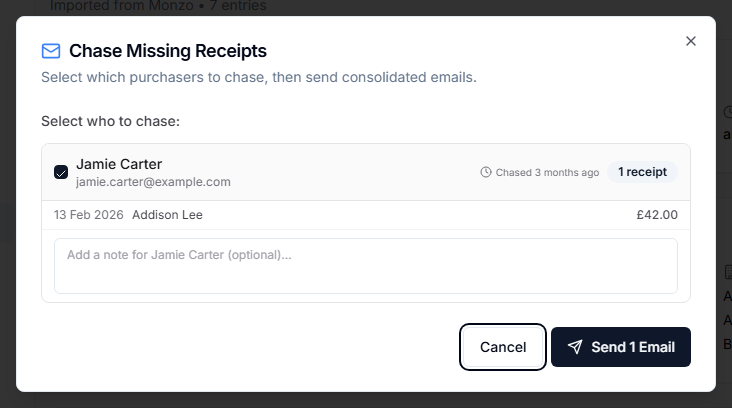
Open the batch and look for entries without receipt evidence. Use Chase Receipts to contact purchasers.
Chase Receipts
- Open the batch.
- Select Chase Receipts.
- Review grouped missing entries by purchaser.
- Add email addresses for unmatched purchasers if needed.
- Add optional comments.
- Send chaser emails.
Chaser emails are consolidated so a purchaser can receive one email listing their missing receipts.
A row asked about in the last 3 days is shown but not ticked, so sending twice doesn't repeat a request by accident. That counts this statement's own requests, and requests for the same bank transaction from Tables or from another statement that overlaps this one. To ask again anyway, tick Ask again about… in that person's card; someone asked about everything recently starts unticked, and ticking them asks again. Each card's number shows how many receipts that person's email will list.
Attach a Receipt to a Saved Entry
In a Table, entries without a receipt are highlighted and show an option to add a document. To list them all, open the Documents filter in the toolbar and choose Missing receipt. Generated conversion evidence does not count as a receipt, so a foreign-currency entry with only its conversion screenshot is listed too.
- Find the entry missing invoice evidence.
- Select Add Document.
- Review suggested documents if available.
- Search or filter documents if needed.
- Attach the correct receipt.
For several missing receipts, open Suggestions from the Table toolbar. Review the preview and match reasons, add individual receipts, or use the action to add recommended high-confidence matches. Weaker or ambiguous suggestions need individual review; avoid claiming the same receipt twice.
Suggestions compare amount/currency, date and vendor against processed, unattached documents already in your library. They cannot recover an email that never reached GrantKeeper. If no suggestion fits, search manually or upload the missing receipt.
Personal Card Receipts
Company card usage is preferred because it keeps the receipt closer to the bank transaction. If someone uses a personal card, use manual upload or email-in, then add the receipt to the relevant Table entry or create a manual entry.